Overview
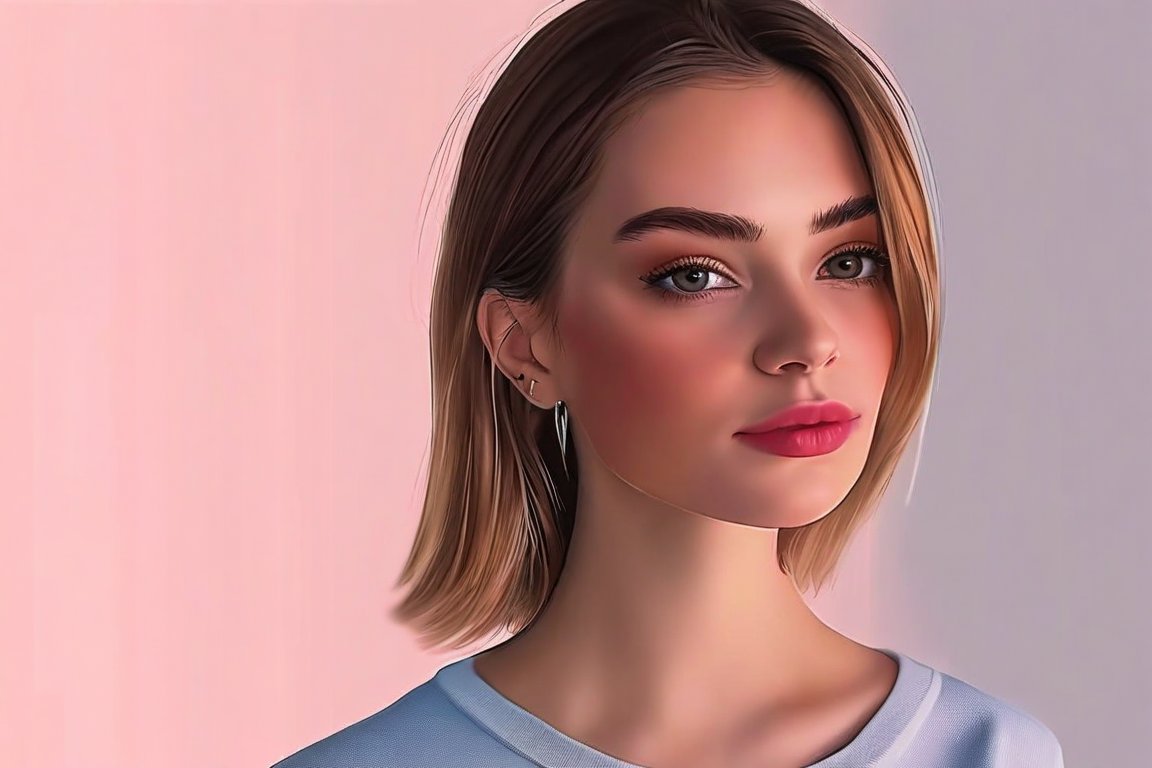
We're going to create a vibrant 5-color digital portrait in just 60 minutes. This project is fun because it pushes your creativity within a limited palette, helping you focus on shapes and tones rather than getting lost in details. Beginners often slip by choosing too many colors or not using layers effectively, but we'll guide you through these challenges.
Materials
- Graphic tablet and stylus
- Digital painting software (e.g., Photoshop, Krita)
- Photo reference of a portrait
- 5-color palette (choose contrasting colors for dynamic results)
Time & Difficulty
- Total time: 60 minutes
- Active time: 60 minutes
- Difficulty: Beginner-friendly
Step-by-Step
- Select your 5-color palette. Aim for a mix of light and dark shades.
- Open your digital painting software and create a new canvas (A4 size or 210 x 297 mm).
- Import your photo reference onto a separate layer for easy toggling.
- Set up your layers: one for each color, plus a background layer.
- Begin with the darkest color to sketch out the main shapes and shadows.
- Switch to the next darkest color to add mid-tones and define facial features.
- Layer the lighter colors to highlight and bring depth to the portrait.
- Use the lightest color for final highlights and accents.
- Toggle your reference layer on and off to check proportions and alignment.
- Adjust your layers' opacity to blend colors smoothly.
- Refine details as needed, but keep the focus on bold, expressive strokes.
- Save your work frequently to prevent loss.
- Export your final image in your preferred format.
Pro Tips
- Use a large brush size for blocking in colors quickly.
- Keep your strokes loose to maintain energy in the portrait.
- Experiment with blend modes for interesting color interactions.
Common Mistakes
- Choosing too many colors: Stick to five for simplicity.
- Not using layers: Keep each color on a separate layer for easy editing.
- Overworking details: Focus on overall shapes and tones instead.
Safety Notes
- Take regular breaks to prevent eye strain and wrist fatigue.
- Ensure your workspace is well-lit to avoid screen glare.
Cleanup & Storage
- Organize your digital files by project and date for easy retrieval.
- Regularly back up your files to avoid data loss.
Next Exercises
- Create a portrait using only three colors to challenge your tonal understanding.
- Experiment with a monochrome palette to enhance your shading skills.
- Try a full-body digital painting using the same 5-color technique.