Overview
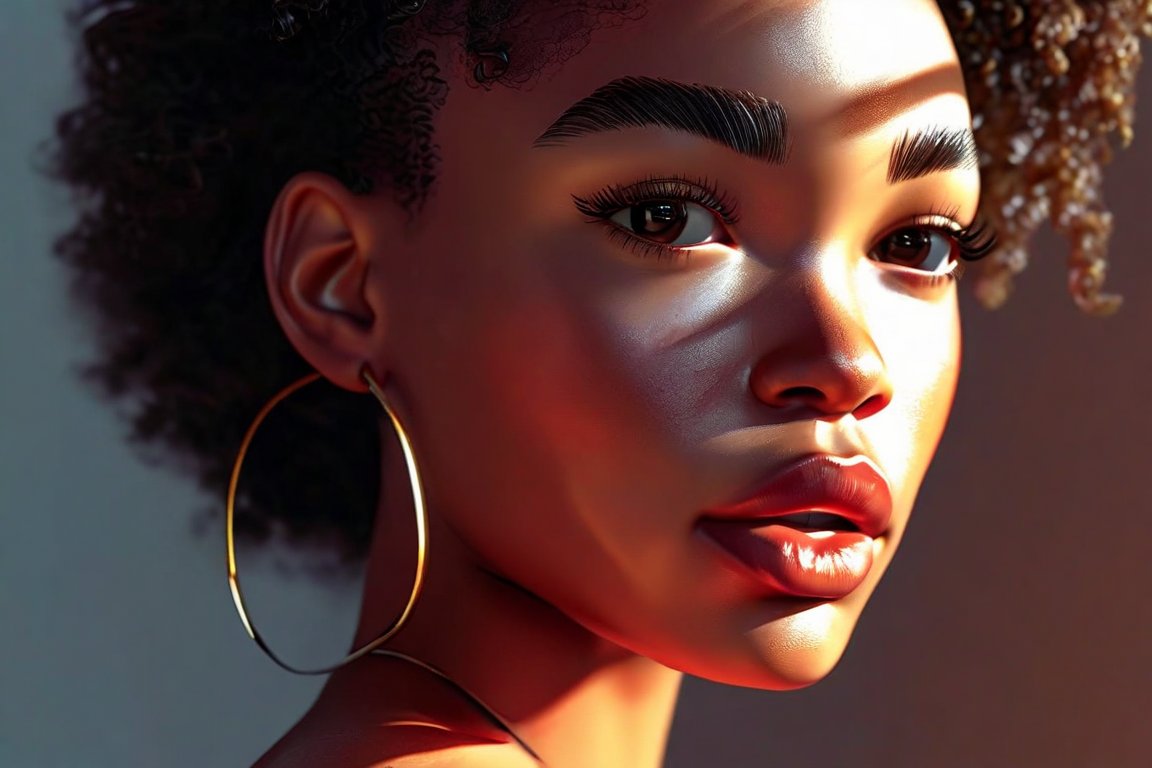
Today, we're creating a digital art piece using only five layers. This exercise sharpens your composition skills, challenges your creativity, and helps you understand the power of simplicity. Beginners often struggle with overcomplicating designs; here, you'll learn to focus and refine your vision.
Materials
- Digital art software (such as Adobe Photoshop, Procreate, or GIMP)
- Graphics tablet and stylus (optional but recommended for precision)
- Computer or tablet with a reliable screen
- Color palette (choose a set of 5-7 colors)
- Inspiration image or sketch (for reference)
Time & Difficulty
- Total time: 2 hours
- Active time: 1.5 hours
- Difficulty: Beginner
Step-by-Step
- Set Up Your Workspace: Open your chosen software and create a new file (A4 size or 210mm x 297mm / 8.3in x 11.7in recommended).
- Plan Your Layers: Decide on the five key elements of your piece (e.g., background, main subject, details, shadows, highlights).
- Create the Background Layer: Fill the first layer with a solid color or a simple gradient to set the mood.
- Add the Main Subject: On a new layer, sketch the main subject of your piece. Keep it simple and bold.
- Refine Details: Use the third layer to add important details to your subject, such as facial features or textures.
- Incorporate Shadows: On the fourth layer, apply shadows to give depth, using a slightly darker shade of your base colors.
- Highlight Features: Use the final layer for highlights to bring areas to life, using a lighter color.
- Adjust Layer Opacity: Play with the opacity of each layer to see how it affects the overall composition.
- Finalize Color Balance: Adjust colors as needed, ensuring harmony across all layers.
- Review Composition: Step back and view your piece as a whole. Make minor tweaks if needed.
- Save Your Work: Save your project in both editable and final formats (e.g., PSD and PNG/JPEG).
Pro Tips
- Use keyboard shortcuts to switch tools quickly and maintain your creative flow.
- Lock layers you're satisfied with to prevent accidental changes.
- Choose a limited color palette to create a cohesive look.
Common Mistakes
- Overcomplicating: Stick to your five layers to avoid clutter.
- Ignoring Layer Order: Ensure important elements are not hidden by incorrect layer stacking.
- Color Imbalance: Regularly check your color balance to maintain harmony.
Safety Notes
- Take regular breaks to prevent eye strain.
- If using a tablet, maintain an ergonomic posture to avoid wrist strain.
Cleanup & Storage
- Save your files in multiple locations to prevent loss.
- Organize your layers and files for easy access later.
Next Exercises
- Create a piece using only three colors to explore color theory further.
- Design a character using only three layers to challenge your simplification skills.
- Compose a landscape using seven layers to balance complexity and clarity.